A heavy GIF slows pages, fails uploads and burns mobile data.
The good news: almost every GIF can lose half its weight without anyone noticing.
We ran one test GIF through nine techniques and measured each result, so you can see which levers matter most.
The test GIF
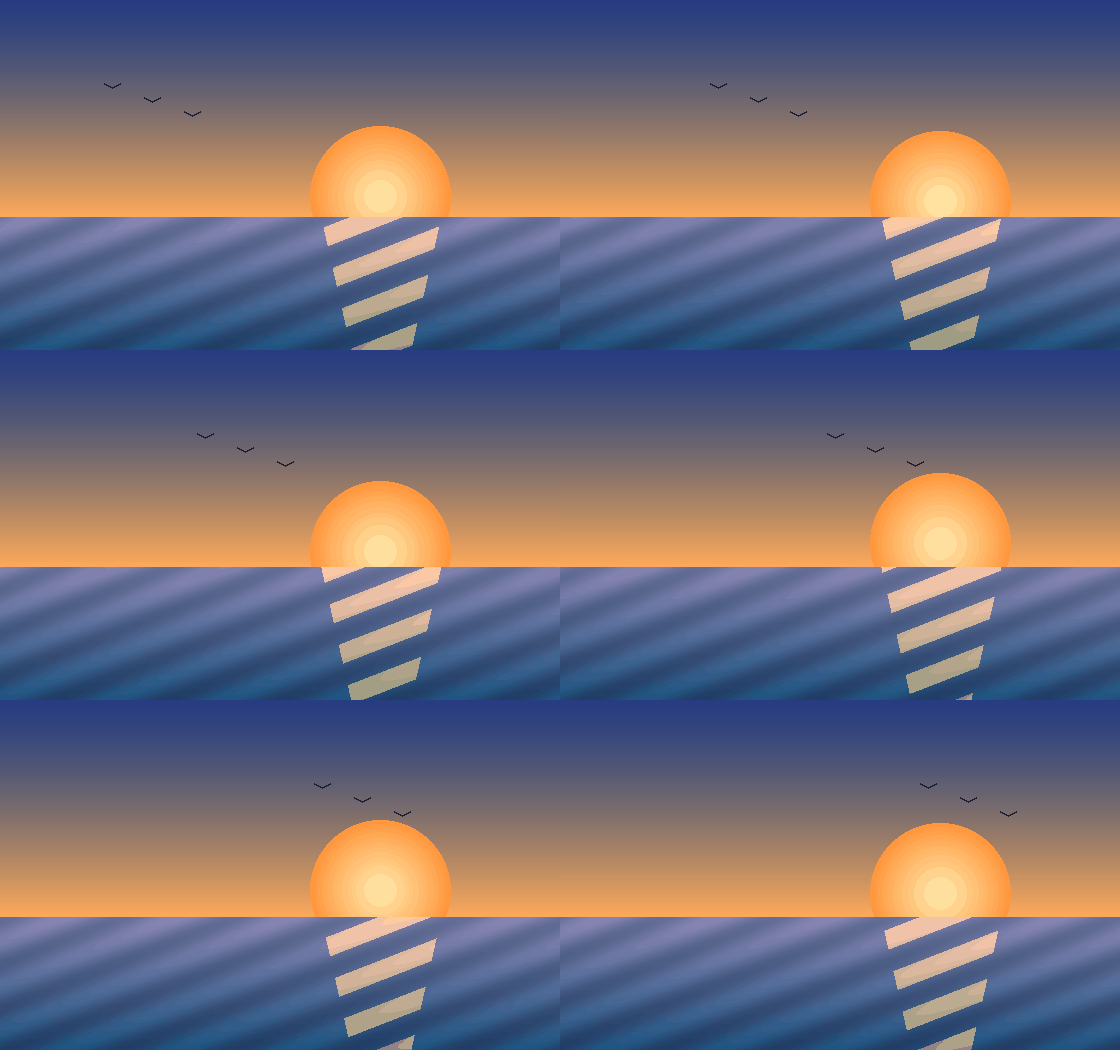
Our sample is a 12-frame animated sunset, 560 x 350 pixels, with a sky gradient, moving water and a few birds. It weighs 303 KB.
Gradients and motion make it a tough case for GIF, which is exactly why it's a useful test. Flat graphics and screen recordings usually compress even better.
| Technique | Result | Change |
|---|---|---|
| Original | 303 KB | - |
| Frame optimization only (lossless) | 263 KB | -13% |
| Crop to 400 x 250 | 156 KB | -48% |
| Resize to 75% | 226 KB | -26% |
| Resize to 50% | 139 KB | -54% |
| Reduce to 128 colors | 192 KB | -37% |
| Reduce to 64 colors | 132 KB | -57% |
| Lossy compression (level 80) | 145 KB | -52% |
| Lossy 80 + 128 colors | 113 KB | -63% |
| Resize 50% + lossy 80 + 128 colors | 60 KB | -80% |
| Maximum preset (64 colors, lossy 160, every 2nd frame) | 42 KB | -86% |
| 128 colors with dithering | 400 KB | +32% |
All results were produced with gifsicle, the same engine behind our tools. Your numbers will differ, but the ranking is typical.
1. Use lossy compression
GIF's LZW compression is normally lossless. Lossy LZW lets the encoder swap a pixel for a near-identical one whenever that makes the data repeat more, and repetition is what LZW compresses.
On our sample, lossy level 80 alone removed 52% with no change you'd spot at normal size. It's the single best "free" saving. Compress GIF applies it in every preset.
2. Reduce the number of colors
Each GIF frame can use up to 256 colors. Fewer colors mean fewer bits per pixel and longer repeating runs.
128 colors is rarely noticeable. 64 starts to show banding in skies and skin tones, but it took our file down 57%. Cartoons, icons and UI recordings often look identical even at 32.
3. Turn dithering off
Dithering scatters dots of the available colors to imitate the missing ones. It smooths gradients, but the scattered dots are noise, and noise is what compression hates.
In our test, 128 colors with dithering produced a file 32% larger than the original. If size matters more than perfectly smooth gradients, leave dithering off.
4. Shrink the dimensions
Data grows with pixel area, so halving width and height leaves a quarter of the pixels. Our 50% resize saved 54%; it would save more on a GIF without gradients, because smooth scaling creates new in-between colors.
Ask how big the GIF actually displays. A GIF shown 400 pixels wide in a blog post doesn't need to be 1200 pixels wide. Use Resize GIF, and read How to Resize a GIF Without Losing Quality for the details.
5. Crop away what nobody needs
Borders, toolbars, black bars and empty background still cost bytes on every frame. Cropping our sample to the sun and the water saved 48% with no loss of quality inside the frame.
Crop GIF lets you drag a box and keeps every frame aligned.
6. Drop frames
Many GIFs carry more frames than motion needs. Keeping every 2nd frame halves the frame count; giving each remaining frame the time of the one it replaces keeps the speed the same.
Motion gets slightly choppier, which is acceptable for reactions and screen recordings. Compress GIF's Maximum preset does this, and Compress GIF to Size can too.
7. Shorten the loop
A four-second GIF where the funny moment lasts one second carries three seconds of dead weight. Trim to the part that matters before you optimize anything else.
To find the right frames, export them with Split GIF and rebuild the short version with the GIF Maker.
8. Let the encoder optimize frames
A well-optimized GIF stores only the pixels that change from one frame to the next, and marks the rest transparent. Editors and converters often skip this and write every frame in full.
This step is completely lossless. Our already-tidy sample still dropped 13%; badly exported GIFs can lose far more.
9. Ask whether it needs to be a GIF
For long clips or video-like footage, other formats are dramatically smaller. An animated WebP or a short MP4 often weighs a fraction of the GIF.
GIF still wins where compatibility matters: email, chat apps, forums and anywhere that strips video. GIF vs WebP vs MP4 vs APNG: Which Format Should You Use? helps you decide.
The right order
- Trim the loop to the moment that matters.
- Crop to the subject.
- Resize to the size it will be shown at.
- Compress last, with lossy compression and fewer colors.
Compressing early and editing later means colors get reduced twice, which costs quality for nothing.
Compress GIF to SizeHave a hard limit? Set it and let the tool find the best settings.Frequently asked questions
What is the fastest way to make a GIF smaller?
Run it through Compress GIF on the Balanced preset. In our test it cut a 303 KB GIF to 107 KB in a couple of seconds with no visible change at normal viewing size.
Does compressing a GIF reduce quality?
Lossy compression and color reduction do remove information, but at moderate settings the change is hard to see. Frame optimization and metadata removal are completely lossless.
Why did my GIF get bigger after editing it?
Usually because of dithering, or because an editor saved every frame in full. Re-optimize the result with Compress GIF and turn dithering off.